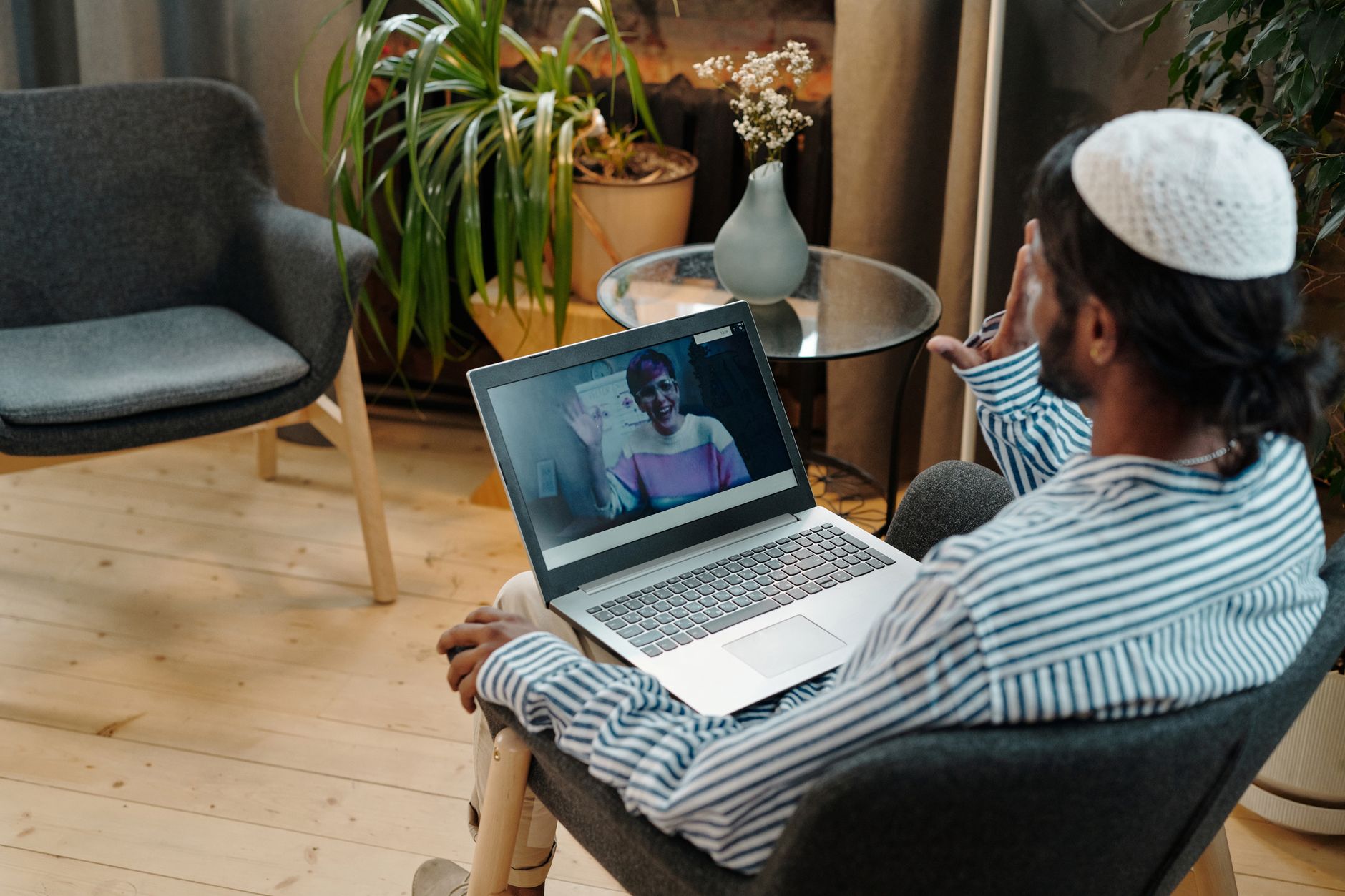
How to Set Up Your Chat Cam for Nonprofit Success
How to Set Up Your Chat Cam

How to Set Up Your Chat Cam for Nonprofit Success

Unlock impactful virtual engagement and fundraising for your mission with this comprehensive chat cam setup guide.

Get Started Now

Key Takeaways

  • ✓ Proper chat cam setup enhances donor engagement and volunteer recruitment.
  • ✓ Good lighting and audio are more critical than camera resolution alone.
  • ✓ Testing your setup before live events prevents technical glitches.
  • ✓ Backgrounds should be clean, professional, and on-brand for your nonprofit.

How It Works

1
Choose the Right Equipment

Select a webcam, microphone, and lighting suitable for your nonprofit's budget and virtual communication needs. Prioritize clear audio and adequate illumination over just high-resolution video.

2
Optimize Your Environment

Prepare your physical space by ensuring good lighting, minimizing background noise, and creating a professional, clutter-free backdrop. This sets the stage for effective and distraction-free communication.

3
Install and Configure Software

Install necessary drivers and configure your webcam and microphone settings within your chosen communication platform. Adjust resolution, frame rate, and audio input levels for optimal performance.

4
Test Thoroughly Before Going Live

Conduct comprehensive tests of your entire setup, including video, audio, and internet connection, with a colleague or friend. This crucial step identifies and resolves potential issues before your important virtual events or meetings.

Understanding Your Nonprofit's Virtual Communication Needs
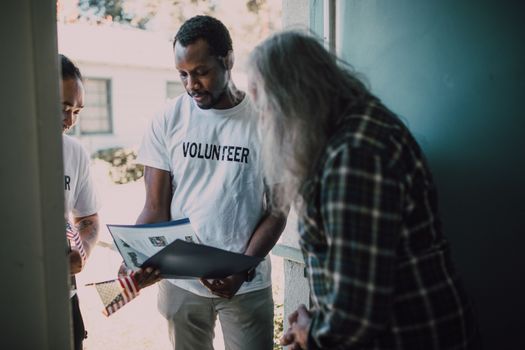
Volunteers visit a home to provide community support and discuss documents. Photo: RDNE Stock project / Pexels
In today's digital-first landscape, virtual communication is no longer an optional add-on for nonprofits; it's a core pillar of engagement, fundraising, and advocacy. Whether you're connecting with potential donors, hosting virtual volunteer orientations, conducting board meetings, or streaming a major fundraising event, your chat cam setup plays a pivotal role in how effectively your message is received. A blurry image, choppy video, or muffled audio can significantly detract from your professionalism and impact, potentially costing your organization valuable support and trust. Conversely, a clear, crisp, and well-lit presentation can elevate your message, making it more engaging and memorable. Before diving into the technicalities of how to set up your chat cam, it's crucial to first assess your nonprofit's specific virtual communication requirements. Consider the types of interactions you'll be having. Are you primarily conducting one-on-one donor stewardship calls, where a simple, reliable webcam might suffice? Or are you planning large-scale virtual galas, live Q&A sessions with beneficiaries, or panel discussions, which demand higher production quality, better lighting, and more sophisticated audio solutions? The scale and nature of your virtual events will directly influence the type of equipment you need and the complexity of your setup. For instance, a small local charity might only need a good quality built-in laptop camera for casual calls, whereas a national organization hosting a virtual conference will require external webcams, dedicated microphones, and professional lighting kits. Think about your audience as well. Donors, volunteers, and community partners expect a certain level of professionalism, reflecting the seriousness and impact of your mission. A clear, stable video feed with excellent audio conveys competence and respect for their time and attention. Moreover, accessibility is paramount for nonprofits. Ensuring your video and audio are of high quality can aid those with hearing or visual impairments when combined with features like closed captions. This initial self-assessment prevents overspending on unnecessary equipment or, critically, underspending on tools that fail to meet your operational demands. By clearly defining your needs, you lay the groundwork for a chat cam setup that truly serves your nonprofit's mission and enhances its virtual presence. This strategic approach ensures that every dollar invested in technology directly supports your organization's goals, maximizing your outreach and impact in the digital realm. It's about empowering your story to shine through, unhindered by technical limitations.

Essential Equipment: Beyond Just the Camera

While the chat cam itself is central, a truly effective virtual communication setup for your nonprofit extends far beyond just the lens. To achieve professional-grade results that resonate with your audience, you need to consider a suite of supporting equipment. The triumvirate of successful virtual engagement comprises a quality camera, crystal-clear audio, and effective lighting. Neglecting any one of these can significantly undermine the impact of the others. Let's start with the camera. For basic meetings, a high-definition (1080p) external webcam like the Logitech C920 or Razer Kiyo (which also includes a built-in ring light) often outperforms most integrated laptop cameras, offering better image quality, low-light performance, and wider fields of view. If your nonprofit aims for higher production value, perhaps for streaming events or creating professional video content, a mirrorless camera (like the Sony ZV-E10 or Canon EOS M50 Mark II) with a capture card can provide a significantly superior image. These cameras offer larger sensors, interchangeable lenses, and more control over depth of field, resulting in a more cinematic and engaging look. Next, audio. This is arguably more critical than video quality. Viewers are often more forgiving of slightly grainy video than they are of muffled, echoey, or static-filled audio. Built-in laptop microphones are rarely sufficient. Options range from simple USB microphones (like the Blue Yeti or Rode NT-USB Mini) that sit on your desk, to lavalier microphones (clip-on mics) that offer excellent clarity for single speakers and allow for more freedom of movement, to headset microphones that combine audio input and output, often preferred for interactive sessions due to their consistent pickup pattern and noise cancellation. For multi-person setups or more complex events, a small audio mixer and multiple microphones might be necessary. Finally, lighting. Good lighting can transform even a basic webcam feed into something professional. Natural light from a window is often the best and cheapest option, but it can be inconsistent. When natural light isn't available or sufficient, investing in artificial lighting is crucial. A simple ring light positioned directly in front of you can eliminate shadows and illuminate your face evenly. For more advanced setups, a two or three-point lighting system (key light, fill light, and backlight) using LED panel lights can create a more dynamic and professional look, separating you from the background and adding depth. Remember, proper lighting reduces strain on your camera, allowing it to perform better even in challenging conditions. Investing thoughtfully in these components ensures your nonprofit communicates with clarity and professionalism, making every virtual interaction count.

You may also find monkey-app.net useful.

Optimizing Your Environment and Software Settings for Impact

Once you have your essential equipment, the next critical steps in how to set up your chat cam involve optimizing your physical environment and configuring your software settings. These often-overlooked aspects can significantly enhance or detract from your virtual presence. Your surroundings contribute immensely to the overall impression you make, while correct software configuration ensures your hardware performs at its peak. First, the physical environment. Choose a location that is quiet and free from distractions. Background noise, whether from pets, family members, or street traffic, can be incredibly disruptive. Consider using sound-absorbing materials like curtains or rugs if echoes are an issue. Your background is equally important. A clean, uncluttered, and professional backdrop is ideal. Avoid busy patterns or personal items that might distract your audience. For nonprofits, a subtle branding element, like a small logo or a banner showcasing your mission, can be effective without being overwhelming. Ensure there's adequate space behind you to create a sense of depth, preventing you from appearing too close to the camera. Position your camera at eye level – this often means elevating your laptop or monitor – to create a more natural and engaging viewing experience, as if you're making direct eye contact. Second, software configuration. After physically connecting your webcam and microphone, you’ll need to ensure your operating system and communication platform recognize them. Most webcams are plug-and-play, but some might require driver installation, which can usually be downloaded from the manufacturer's website. Within your chosen video conferencing software (e.g., Zoom, Microsoft Teams, Google Meet), navigate to the audio and video settings. Select your external webcam as the video input and your dedicated microphone as the audio input. Take the time to adjust settings such as resolution (1080p is generally preferred), frame rate (30fps is standard), and white balance. Many platforms also offer features like background blur or virtual backgrounds, which can be useful if you can't control your physical environment perfectly. Crucially, conduct thorough tests before any important call or event. Use the platform's test features or initiate a quick call with a colleague. Check your video quality, ensuring you are well-lit and in focus. Verify your audio – speak at your normal volume and listen for clarity, echoes, or static. Pay attention to your internet connection; a wired Ethernet connection is always more stable than Wi-Fi for critical broadcasts. These steps ensure that when you go live, your nonprofit presents itself with the professionalism and clarity it deserves, maximizing your impact and fostering stronger connections with your audience.

Common Pitfalls and Advanced Tips for Nonprofit Chat Cam Users

Even with the best equipment and careful setup, common pitfalls can undermine your nonprofit's virtual presence. Being aware of these and implementing advanced tips can elevate your chat cam usage from merely functional to truly impactful. **Common Pitfalls to Avoid:** * **Poor Lighting:** The most frequent mistake. Backlighting (light source behind you) creates a silhouette. Overhead lighting creates harsh shadows. * **Bad Audio:** Echoes, background noise, or low volume make your message difficult to hear and your organization seem unprofessional. * **Distracting Backgrounds:** Clutter, busy patterns, or inappropriate items detract from your message and reflect poorly on your brand. * **Eye-Level Camera:** Looking down or up at your camera creates an unflattering angle and feels less engaging. * **Lack of Testing:** Rushing into a live session without a full audio and video check is a recipe for technical disaster. * **Ignoring Bandwidth:** A slow or unstable internet connection leads to choppy video and audio, frustrating participants. **Advanced Tips for Nonprofits:** * **Branding Consistency:** Use virtual backgrounds with your nonprofit's logo or a branded banner in your physical space. This reinforces your identity. * **Eye Contact Simulation:** Place your webcam as close to the top of your screen as possible, and try to look directly into the lens when speaking. This creates the illusion of direct eye contact with your audience. * **Engagement Tools:** Utilize features within your video conferencing platform, such as polls, Q&A sessions, and breakout rooms, to keep participants actively involved, especially during longer events. * **Dedicated Space:** If possible, designate a specific area in your office or home for virtual meetings and recordings. This helps maintain consistency in your setup and brand image. * **Backup Plan:** Always have a backup internet connection (e.g., mobile hotspot) and a backup audio solution (e.g., headset mic) ready for critical events. * **Practice Presentation:** Rehearse your presentations in front of your chat cam. Pay attention to your body language, tone, and pacing. Record yourself to identify areas for improvement. * **Software Updates:** Keep your operating system, webcam drivers, and video conferencing software updated. This ensures optimal performance and access to the latest features. * **Accessibility:** Ensure your content is accessible. Use clear language, speak distinctly, and consider live captioning or sign language interpretation for larger events. By proactively addressing these common issues and implementing these advanced strategies, your nonprofit can leverage its chat cam setup to not only connect but truly resonate with its audience, fostering stronger relationships and driving greater impact for your cause.

Comparison

FeatureBest Option (Pro Setup)Alternative 1 (Mid-Range)Alternative 2 (Budget-Friendly)
Webcam/CameraMirrorless Camera (e.g., Sony ZV-E10 + Capture Card)Logitech C920/C922/BrioBuilt-in Laptop Camera (with good lighting)
MicrophoneXLR Mic + Audio Interface (e.g., Rode NT1 + Focusrite Scarlett)USB Condenser Mic (e.g., Blue Yeti, Rode NT-USB Mini)USB Headset Mic (e.g., Logitech H390)
LightingTwo-Point LED Panel LightsLarge Ring Light (e.g., Neewer 18-inch)Natural Window Light + Small Desk Lamp
BackgroundBranded Backdrop/Clean OfficeClean, Uncluttered WallVirtual Background (subtle)
Internet ConnectionWired Ethernet (100Mbps+)Stable Wi-Fi (50Mbps+)Stable Wi-Fi (25Mbps+)
Cost (Estimated)$500 - $1500+$150 - $400$0 - $75

What Readers Say

"Following this guide on how to set up my chat cam transformed our donor update calls. The video quality is so much clearer, and I feel more confident engaging with our supporters virtually."

Sarah Chen · Seattle, WA

"The advice on audio setup was a game-changer. Our virtual volunteer orientations are now free of distracting echoes, making it easier for new recruits to understand our mission and instructions."

Mark Johnson · Austin, TX

"We implemented the lighting tips for our virtual gala, and the feedback was incredible. Our speakers looked polished and professional, which directly contributed to a 20% increase in pledges compared to last year's online event."

Emily Rodriguez · Miami, FL

"The guide provided excellent foundational knowledge. While some of the 'pro' equipment is beyond our current budget, the mid-range suggestions significantly improved our video conferencing quality without breaking the bank."

David Lee · Denver, CO

"As a small nonprofit, we needed to maximize our limited resources. This article on how to set up your chat cam helped us make smart, cost-effective decisions that made a huge difference in our online presence for grant applications and community outreach."

Jessica White · Chicago, IL

Frequently Asked Questions

What's the most important factor for a good chat cam setup for a nonprofit?

While video quality is important, crystal-clear audio is often the most critical factor. Viewers are more likely to disengage due to poor sound than slightly less-than-perfect video. Prioritize a good microphone and a quiet environment above all else for impactful communication.

Do I need to buy an expensive camera for my nonprofit's virtual events?

Not necessarily. For most routine meetings and smaller events, a good quality 1080p external webcam (around $50-$100) will be a significant upgrade from a built-in laptop camera. Only consider a mirrorless or DSLR camera if you're aiming for very high-production value for major fundraising galas or professional content creation.

How can I improve my lighting without buying expensive equipment?

Start with natural light by positioning yourself facing a window. If that's not an option, use a desk lamp with a soft, diffused light source positioned directly in front of you. Avoid overhead lights and lights behind you, as they create harsh shadows or silhouettes.

What's a reasonable budget for a basic, professional chat cam setup for a small nonprofit?

You can achieve a very respectable setup for a small nonprofit for around $100-$200. This budget would typically cover a decent 1080p external webcam (e.g., Logitech C920) and a good quality USB microphone (e.g., Blue Yeti Nano or Rode NT-USB Mini), which will dramatically improve your virtual presence.

Is it better to use a virtual background or a physical one?

A clean, professional physical background is generally preferred, as virtual backgrounds can sometimes look unnatural or glitchy, especially with less powerful computers or inconsistent lighting. If a physical background isn't feasible, choose a simple, subtle virtual background that aligns with your nonprofit's branding.

Who should prioritize investing in a high-quality chat cam setup?

Nonprofits that frequently engage with major donors, host large virtual fundraising events, conduct public-facing webinars, or create professional video content for their website and social media should prioritize a high-quality setup. Any organization where virtual first impressions are critical to their mission will benefit significantly.

Are there any security risks associated with chat cams?

The primary risk is unauthorized access if your camera is compromised. Always ensure your operating system and video conferencing software are updated. When not in use, consider using a physical camera cover or unplugging external webcams. Be mindful of what is visible in your background to protect privacy.

How will chat cam technology evolve for nonprofits in the future?

Expect greater integration with AI for features like automatic framing, enhanced noise cancellation, and real-time captioning. We'll likely see more affordable, high-quality cameras with built-in lighting and advanced sensors, making professional-grade virtual communication even more accessible for nonprofits of all sizes.

Mastering how to set up your chat cam is an investment in your nonprofit's future. By implementing these strategies, you can enhance your virtual presence, engage your audience more effectively, and ultimately drive greater impact for your vital mission. Don't let technical hurdles stand in the way of your organization's success – empower your message today.

Topics: How to Set Up Your Chat Camnonprofit video conferencingwebcam setup for fundraisingvirtual event camera guidenonprofit streaming equipment
Leo List
Brampton weed
Adultwork